Quick answer: which method should you use?
| Destination | Method | Best for | Main limitation |
|---|---|---|---|
| Bluetooth, AirPlay, or wired speaker | Live microphone app | Speech, announcements, casual karaoke | Bluetooth adds noticeable delay |
| Mac | Continuity Camera microphone | Calls, recording, and Mac apps | Requires compatible Apple devices and settings |
| Windows PC | Third-party iPhone + PC companion software | Calls, streaming, or recording on Windows | No built-in universal Apple-to-Windows microphone mode |
| Video or audio file | Camera, Voice Memos, or recorder | Capturing content for later playback | Does not amplify your voice live |
| AirPods or supported hearing device | Live Listen | Hearing sound near the iPhone | Not a room speaker or PA system |
Method 1: use iPhone as a microphone for a speaker
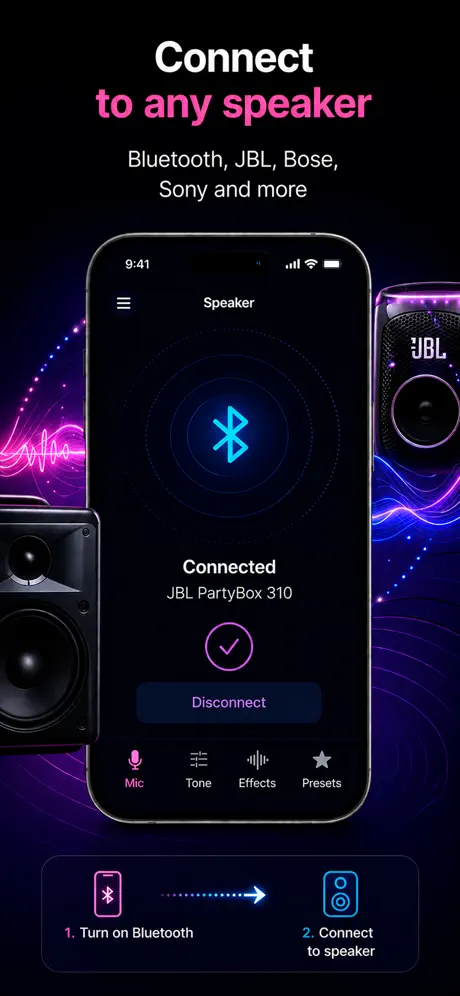
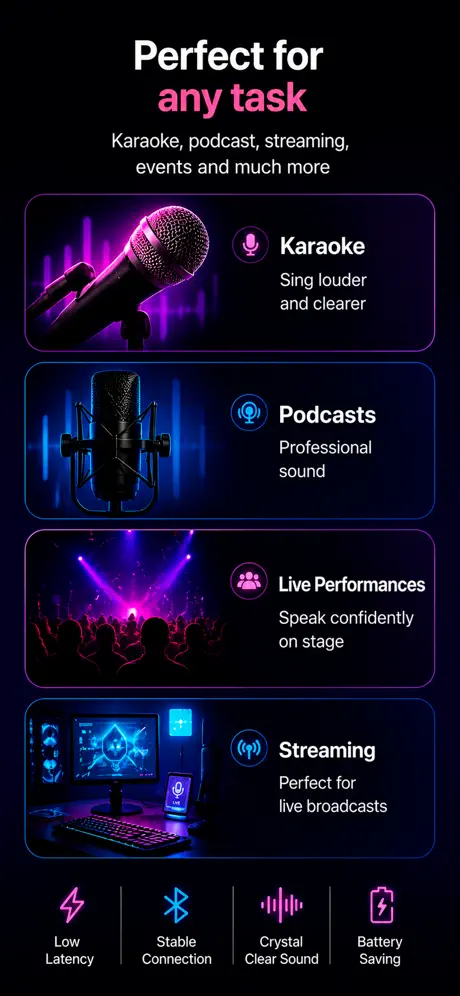
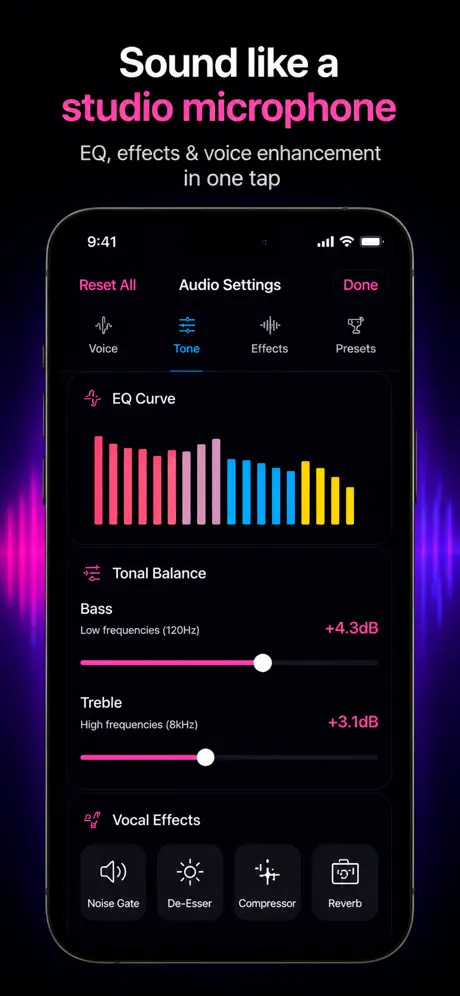
This is the method Microphone App Bluetooth Live is designed for. The iPhone captures your voice and iOS sends the live output to the currently selected speaker. It works well for one person speaking in a small room, announcements, rehearsal, voice practice, and casual karaoke.
Connect the output before starting live mode
Pair the Bluetooth speaker, choose an AirPlay destination, or attach a wired adapter first. Then open the app, allow microphone access, and start live mode. iOS controls the active route, so confirming the output before you speak prevents most “connected but no sound” problems.
Choose the connection by latency
- Bluetooth is easy and portable, but the delayed voice can be distracting for singing.
- AirPlay works with HomePod and compatible network speakers, but it is still a buffered wireless path.
- A wired speaker or audio interface gives the lowest and most predictable delay.
Prevent feedback
Keep the speaker in front of you and the iPhone behind the speaker’s sound field when possible. Start around 30% volume and raise it gradually. If the system squeals, lower speaker volume first and increase the physical distance between the phone and speaker.
Method 2: use iPhone as a microphone for a Mac
On supported Apple devices, Continuity Camera can make the iPhone microphone available to Mac apps. The iPhone and Mac must meet Apple’s compatibility requirements, use the same Apple Account with two-factor authentication, and have the required wireless settings enabled. The iPhone should be nearby, locked, and positioned with its microphones unobstructed.
In a compatible Mac app, choose the iPhone from the microphone or input menu. This route is useful for calls, recordings, and apps running on the Mac. It is different from sending the microphone to a room speaker, and Microphone App Bluetooth Live is not required for the Continuity Camera method.
Method 3: use iPhone as a microphone for Windows
Windows does not receive an iPhone as a universal Bluetooth microphone through a built-in Apple feature equivalent to Continuity Camera. A working setup normally needs a third-party app on the iPhone, companion software or a virtual audio device on the PC, and a USB, Wi-Fi, or local-network connection.
Check what the Windows software installs, whether it creates a virtual microphone, how it handles privacy, and whether it stays stable after sleep or network changes. Our live speaker app does not install a Windows audio driver and should not be presented as a Windows microphone solution.
Method 4: record with the iPhone microphone
Use Camera when the microphone needs to be part of a video, Voice Memos for a quick audio recording, or a dedicated recording app when editing and export options matter. Recording apps capture a file; they do not necessarily play your voice through a speaker while you speak.
For clearer speech, keep the bottom microphone roughly 15–20 cm from your mouth, avoid covering the microphone openings, and move away from fans, traffic, and reflective walls. An external USB-C or Lightning microphone can improve pickup, but it does not change the destination-routing question.
Method 5: use Live Listen with AirPods or hearing devices
Apple Live Listen uses the iPhone as a remote microphone and sends nearby sound to compatible AirPods, Beats products, or Made for iPhone hearing devices. It is intended for personal listening. It does not amplify your voice through a Bluetooth room speaker and is not a karaoke or announcement mode.
What an iPhone cannot do as a microphone
- It does not automatically become a standard Bluetooth headset microphone for every PC, camera, console, car, or speaker.
- An app cannot remove latency already introduced by a Bluetooth output device.
- The built-in microphone and a portable speaker do not replace professional wireless microphones for a stage or large audience.
- A recording app is not automatically a live voice-amplifier app, even though both request microphone permission.